For accounting & bookkeeping firms · Growing practices
SharePoint & Microsoft 365 for accounting firms
Every busy season, the same thing happens: client documents arrive by email, phone photos and shared links, folders are named differently by every team member, and someone keeps a spreadsheet of which returns are still waiting on the client.
I set up Microsoft 365 around how an accounting practice works: a folder for every client and year, secure ways for clients to send you documents, and review and sign-off steps handled by Power Automate. It works alongside your practice management and tax software, inside the Microsoft 365 you already pay for.
Sounds familiar?
Signs you need this
- —Client documents arrive by email, WhatsApp and shared links, and get saved in different places.
- —Every team member names client folders differently.
- —You track which jobs are waiting on clients in a spreadsheet.
- —Reviews and sign-offs happen by email, with no clear record.
- —Clients say they can't open the files or links you send.
What you get
What I set up for you
A folder for every client and year
One consistent structure for every client (permanent file, each year's work, correspondence), with columns like service, status and year so you can filter in one click.
Secure document requests
Upload links that let clients send documents straight into their own folder, without seeing anything else, instead of emailing attachments.
Review and sign-off workflow
Work routed from preparer to reviewer to partner with Power Automate, with every approval recorded against the client and year.
A live job tracker
A Microsoft List showing every job, who has it and what it's waiting on, replacing the busy-season spreadsheet.
Permissions by team
Access by group, restricted areas for payroll and HR, and client areas that only the right staff can open.
Ready for Copilot
Oversharing checked and old files tidied first, so if you switch Copilot on, it finds the right client's documents and nothing it shouldn't.
How it works
Four steps, no surprises
- 01
Discovery
A free call about your goals, your bottlenecks and your existing tenant.
- 02
Design
Site structure, permissions and page layouts agreed before anything is built.
- 03
Build
Delivered in days, inside your own Microsoft 365.
- 04
Launch & train
Rollout, short training for your site owners, and support after go-live.
Examples
Related work
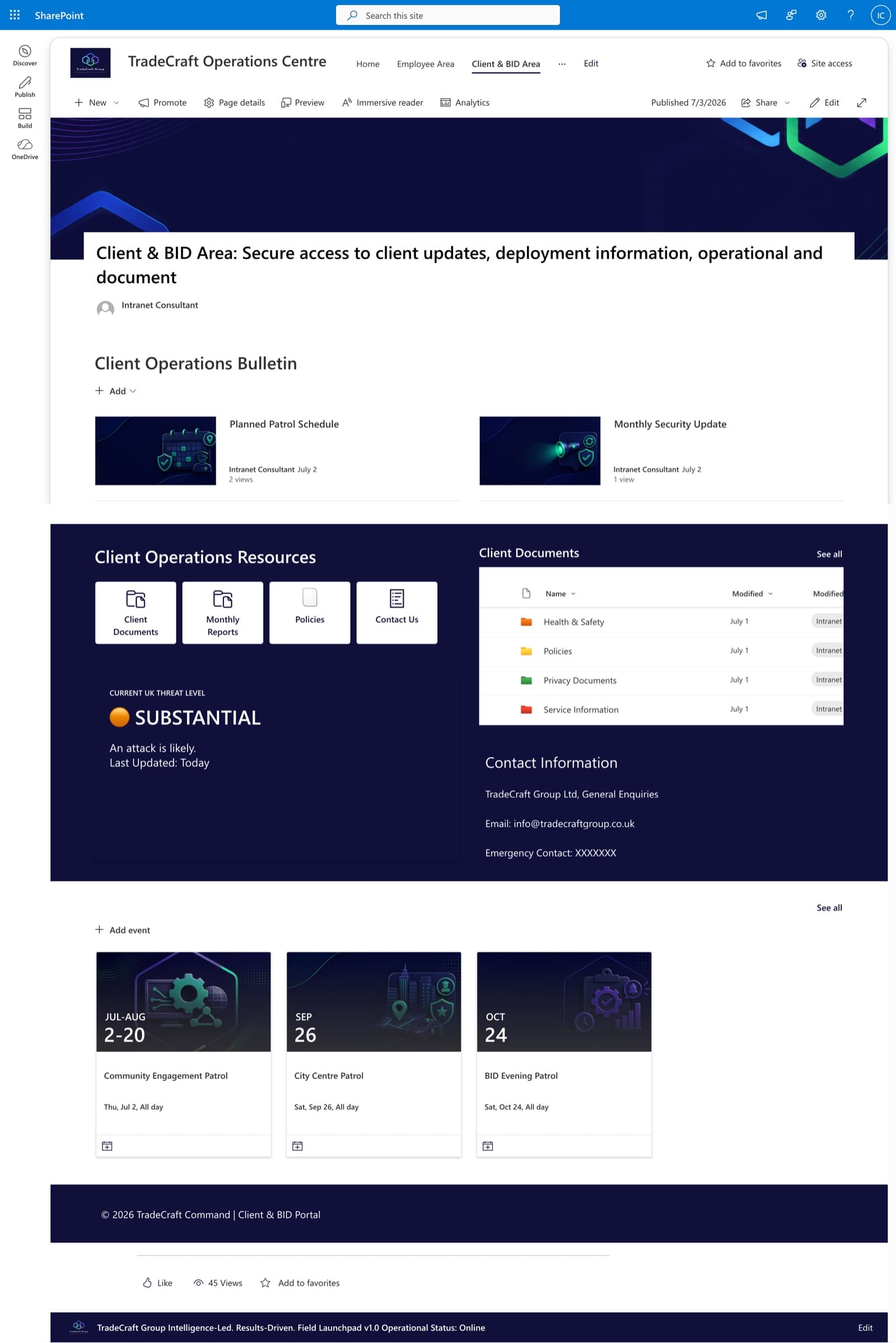
Client & BID Information Centre
A secure client-facing portal with company updates, policies, threat-level reporting, and self-service document access — scoped with granular permissions.
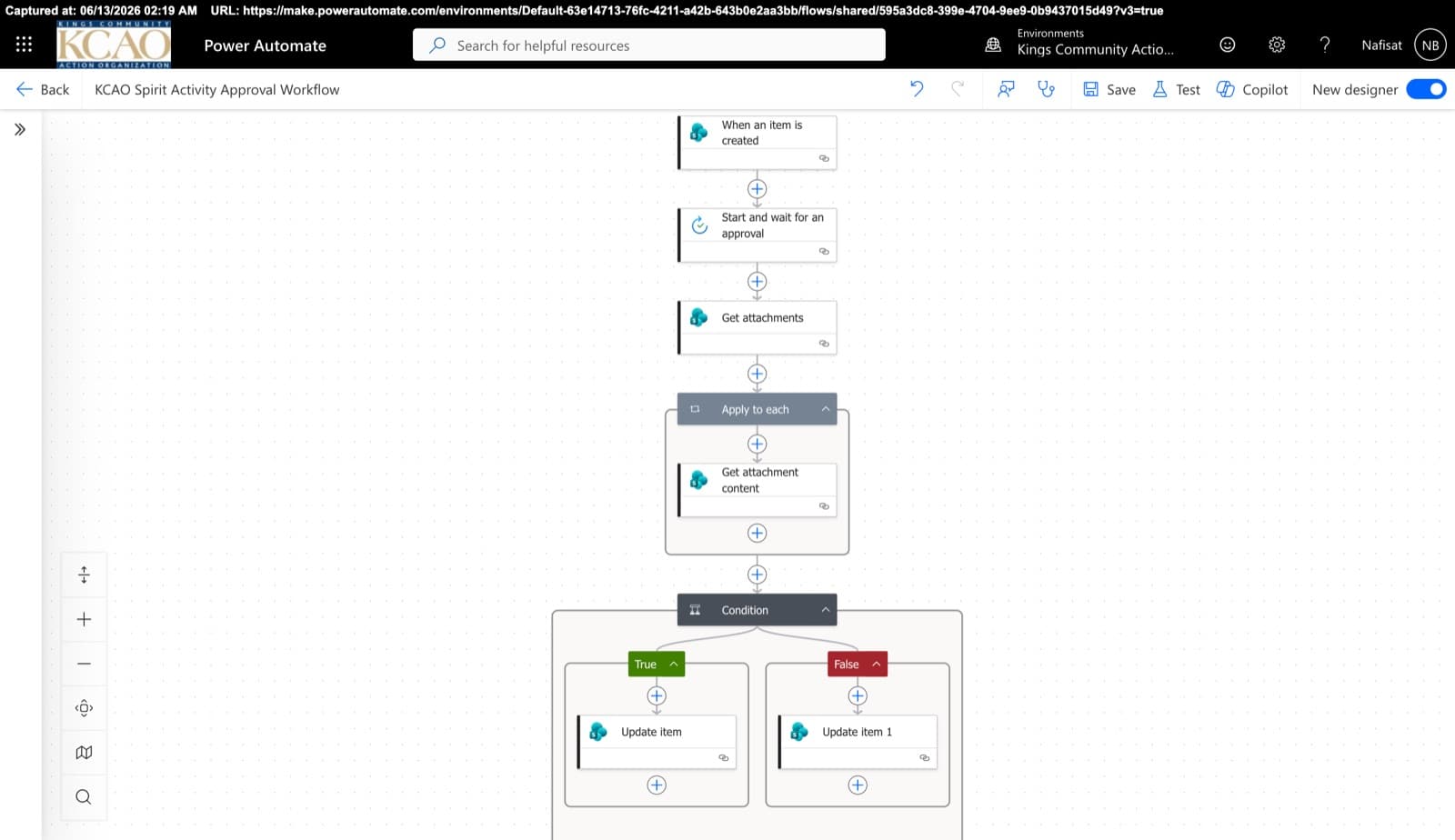
Approvals & Scoring Automation
Automated flows powering the Spirit League and document approvals — attachment handling, multi-stage approvals, and conditional list updates across SharePoint.
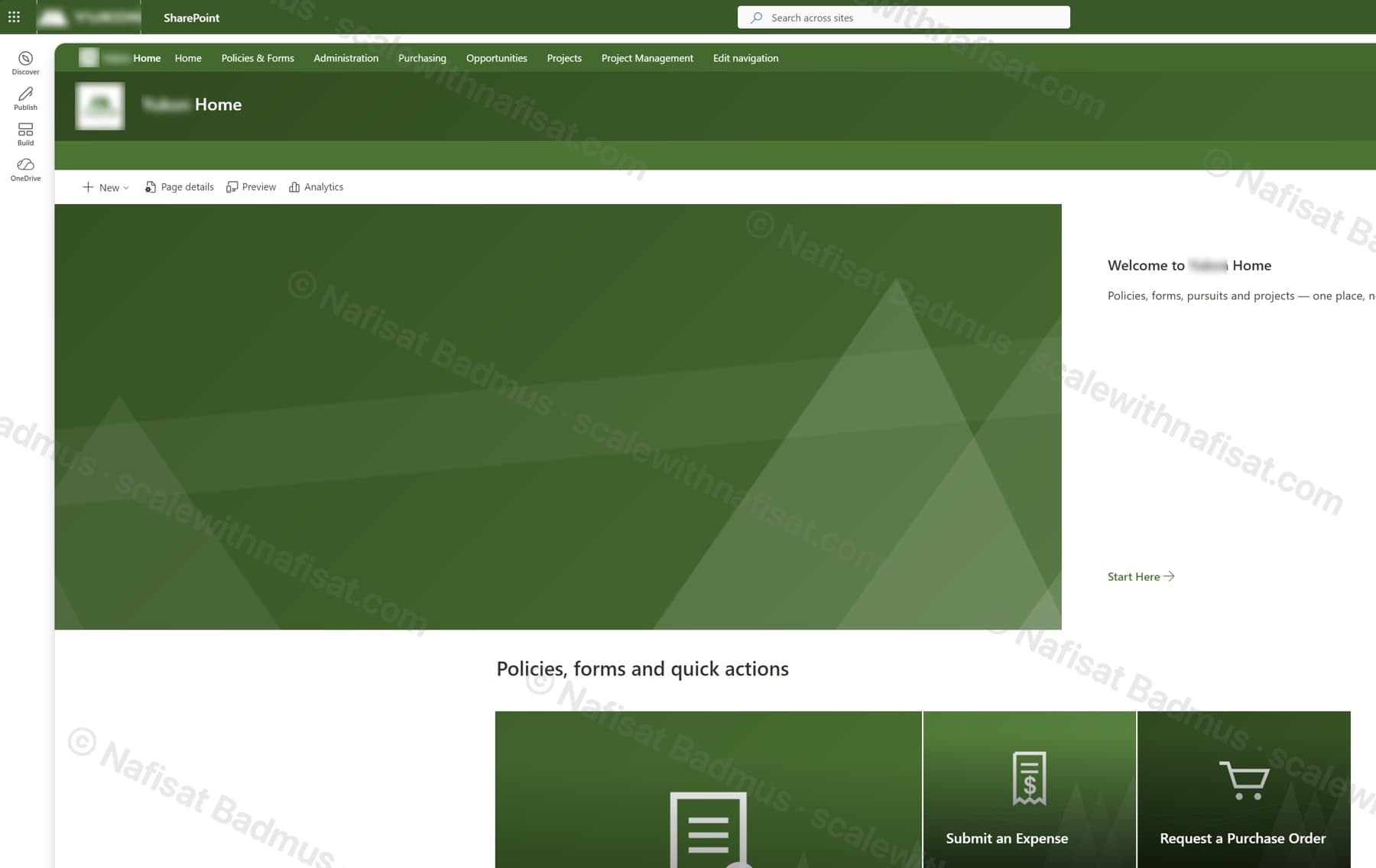
Business-Ready Microsoft 365 Intranet
An untouched Microsoft 365 tenant turned into a branded company intranet — seven sites on one hub, a locked-down records area, sales and project workspaces, all fully scripted.
Questions
Common questions
Do we still need our practice management or portal software?+
Usually yes for practice management and tax work. SharePoint and Power Automate handle the documents, client uploads and internal sign-offs around them. Some smaller firms do use SharePoint instead of a separate document portal. On a free call I'll tell you honestly what makes sense for your firm.
Can clients upload documents without seeing other clients' files?+
Yes. Each client can get an upload link for their own folder only, so they can send documents in without seeing anything else.
Can you set this up before our busy season?+
Yes, and that's the best time. Most setups take days rather than months, and I can roll out the new structure for new work first so nobody's current jobs are disrupted.
How does pricing work?+
Every project is fixed-price, agreed before any work starts, so there are no surprise invoices. After a free 15-minute call I send a clear quote with what's included and the timeline.
Can you work with us remotely?+
Yes. I'm based in Ibadan, Nigeria and work remotely with businesses worldwide. We meet on video calls and I build directly inside your Microsoft 365.
Free download · PDF
The Microsoft 365 Setup Checklist
9 steps to set up SharePoint, permissions and security properly, as a printable tick-box list. Starting fresh or tidying up years of “we'll sort it later”.
Further reading
- Clients Can't Open Your SharePoint Links? What's Changing This Month and How to Fix ItMicrosoft is retiring the one-time codes that let outsiders open SharePoint and OneDrive files. Clients, accountants and contractors without a guest account will start seeing “access denied”. Here's who's affected and the five-minute fix.
- You're Paying for Microsoft 365. Here's What Setting It Up Properly Actually Looks LikeMost businesses use Outlook and Teams and leave the rest of Microsoft 365 untouched. A practical, nine-step checklist for setting it up properly — whether you're starting fresh or have been on it for years.
- SharePoint Alerts Stopped Working? Here's How to Get Your Notifications BackMicrosoft retired SharePoint Alerts in 2026, so the “Alert me” emails your team relied on have gone quiet. Here's how to replace them with SharePoint Rules or Power Automate, from a two-minute fix to smarter notifications.
Want next busy season to run smoother?
Book a free call. We'll look at what you have and what you need.
Book a free call